Create a zone
A zone identifies a part of your page that AXO can change. The preferred workflow is to ask Claude to bind zones: Claude uses AXO skills, opens your page in Chrome, and connects the selected areas to AXO. You can also use the dashboard picker or review AI suggestions. Then add content variants for the audiences you want to reach.
Ask Claude to bind zones (recommended)
With AXO connected, its skills available, and Chrome access enabled in Claude, describe the page and areas you want to personalize. Claude inspects the page and binds those areas as zones. A binding tells AXO where the zone and its editable fields are on the page.
Use the AXO skills and open https://example.com in Chrome. Bind the homepage hero as a zone with headline, image, and button fields. Check existing zones first. Show me what you bound and the page pattern. Leave content and publishing unchanged.
Replace the example URL with your page. Follow Bind zones with Claude for setup and how to check the saved result.
Create a zone with the picker
Select the correct site in AXO. You need editing permission and a page that the preview can load.
- Open Zones and click Visual editor.
- Enter your page URL in Proxy target and click Go.
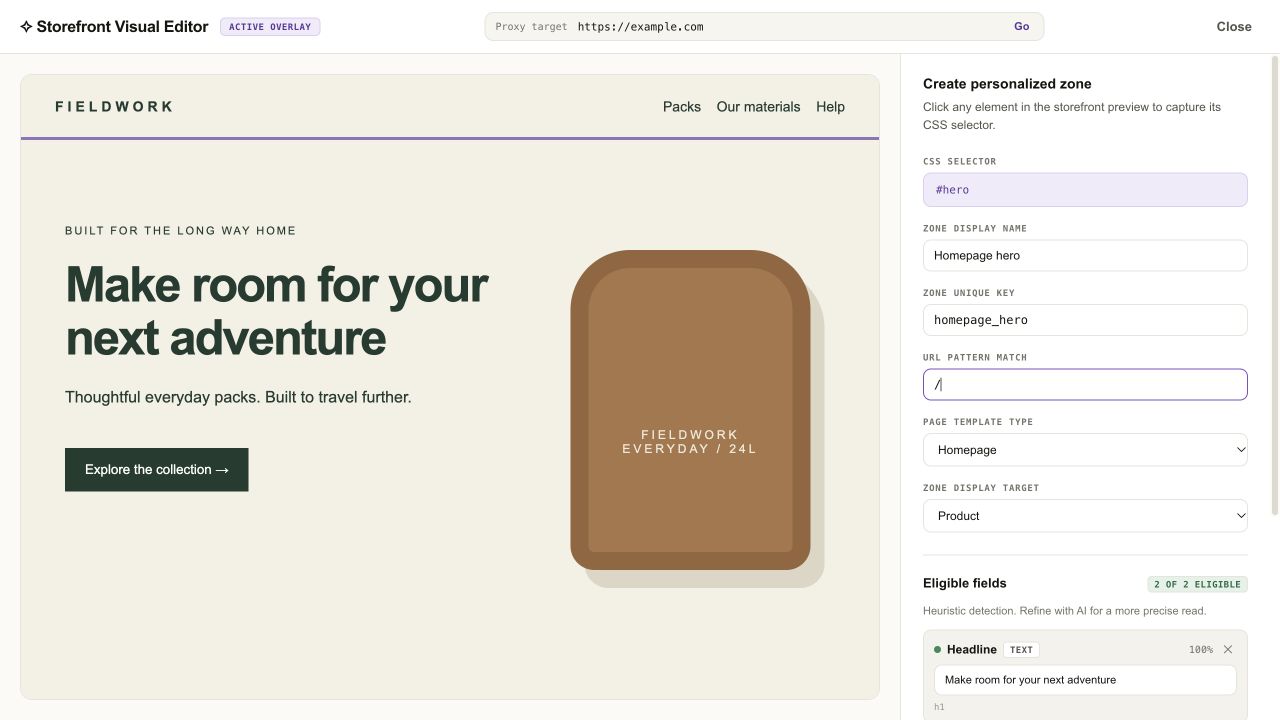
- Click the area you want to personalize. For a homepage headline, select the surrounding hero section so the headline becomes a field inside the zone. AXO captures the section's CSS selector, the address it uses to find that element.
- Enter a Zone display name, such as “Homepage hero.” AXO fills the Zone unique key from the name; you can edit it.
- Set URL pattern match. Use
/for the homepage,/pricingfor one path, or/products/*for matching product paths. The default*covers every path, so narrow it when appropriate. - For this homepage example, set Page template type to Homepage and leave Zone display target as Product, its default. This setting chooses the kind of catalog item used for recommendations; it does not restrict the zone to product pages. Use Category or Article when recommending those items.
- Under Eligible fields, keep the headline field and remove other fields for a headline-only change. Keep image and link fields if you also want to personalize them. Click Save zone.
Result: the zone is saved and approved for use. Saving a zone does not create a content variant. Open Create and publish content for the next step.
Check what the zone can change
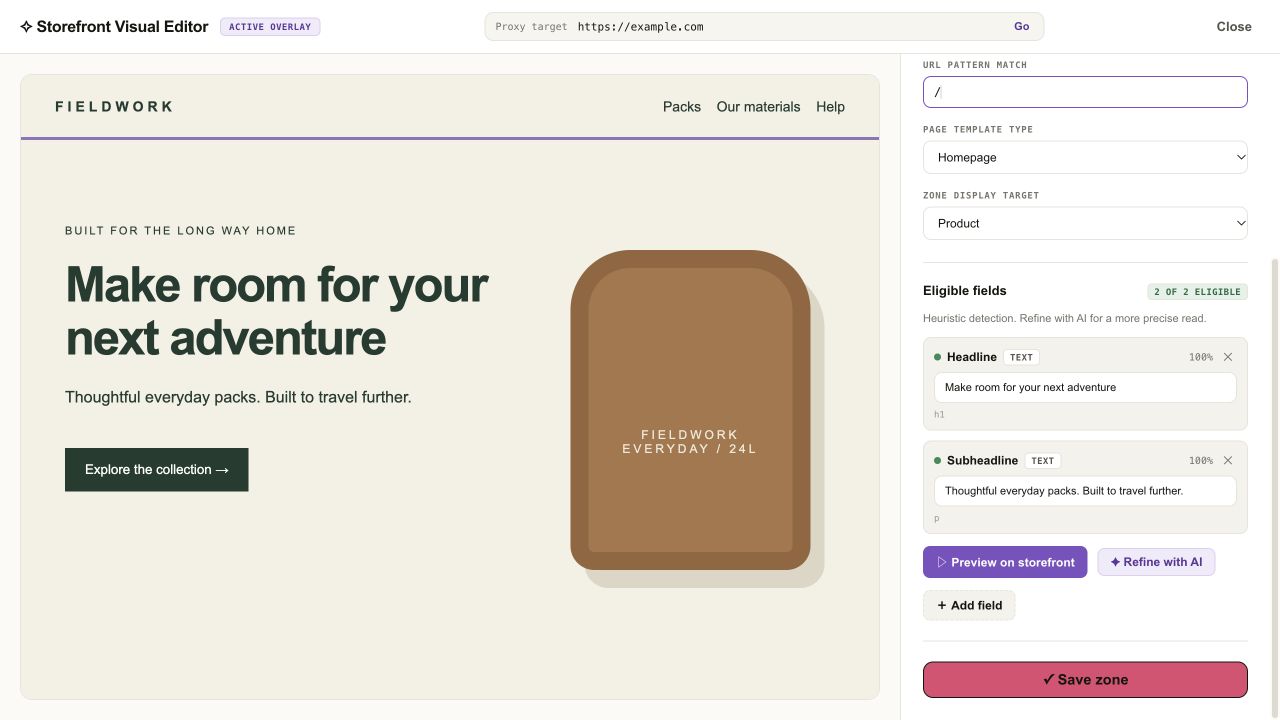
After you select an element, AXO detects editable fields inside it, such as text, images, and links. Check their markers in the preview.
- Choose Add field and click a missing element inside the zone.
- Remove any field you do not want included.
- Use Refine with AI to improve detected fields when that option is available.
- Edit sample values and choose Preview on storefront to check placement. Reset preview restores the page.
These value edits are temporary previews. Save zone saves the field bindings and their original samples, not the replacement copy you tried. Write replacement copy in Content.
Create zones with AI
Discover zones across pages:
- Open Sitemap and choose Run deep analysis.
- When analysis finishes, choose Review in Zones under Detected zones.
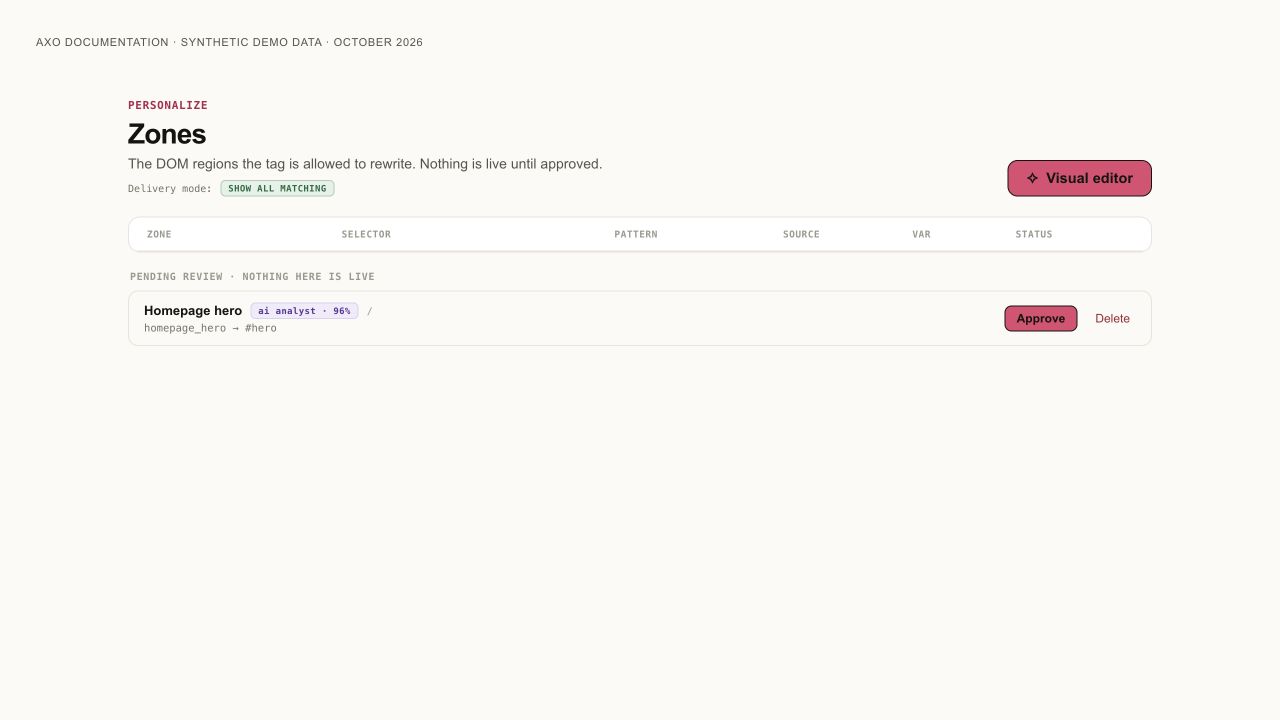
- Review each suggestion's page pattern and selector in Pending review. Choose Approve for a zone you want to use or Delete for an unwanted suggestion.
Ask the Assistant: click Ask AXO at the top right of the dashboard, then describe the page and area you want. See Use the AI Assistant for its controls. For example:
Help me create a zone for the homepage hero headline. Check the existing zones first. Show me the page pattern and selector before creating it.
The dashboard Assistant can inspect and create zones. For browser-assisted binding, ask Claude to open the page in Chrome. Review the saved zone and its fields before adding content.
A crawl can miss content that appears only after JavaScript runs or after login. Ask Claude to inspect the rendered page in Chrome, or use the visual picker, when a suggested selector does not identify the intended element.
If the zone does not work
- The preview will not load: ask Claude to bind the zone in Chrome on a page you can access.
- A field is missing: use Add field, or select a parent element that contains the content you need.
- The zone exists but nothing changes: check its page pattern, approval, saved variants, target audience, publishing state, and site launch mode.
- A selector stopped matching: inspect the zone's status and Suggested repairs in Zones. Review a repair before approving it.