Create, preview, and publish content
Create a content variant, preview it for its target audience, and make it available to visitors. Start with an approved zone and an existing audience segment. Use Create a zone or Choose an audience to prepare either one.
1. Draft and save content
Before editing, check Publishing. Turn on Review before publishing to save changes privately until you publish them.
- Open Content, select the page type, and open your zone. For the homepage headline example, use In-place content.
- Click Add variant and choose its Target Segment. The editor initially selects the first available segment; check its description in Segments and choose the audience that fits your message.
- Fill the available fields or click Draft with AI. Review the copy, links, images, and audience before saving.
- Click Create override to save the new variant. This is the current button label in the field editor.
New variants require that first save. Existing variants autosave after edits; the save status confirms completion. Draft with AI fills the editor, so changes to an already saved variant also follow its autosave behavior.
To draft several variants, ask the Assistant for the specific zone and segments. Include whether you want private drafts or live changes, and review its proposed actions.
2. Preview the saved result
To preview changes privately before publishing, turn on Review before publishing in Publishing before editing. When it is off, saved edits become eligible for live delivery.
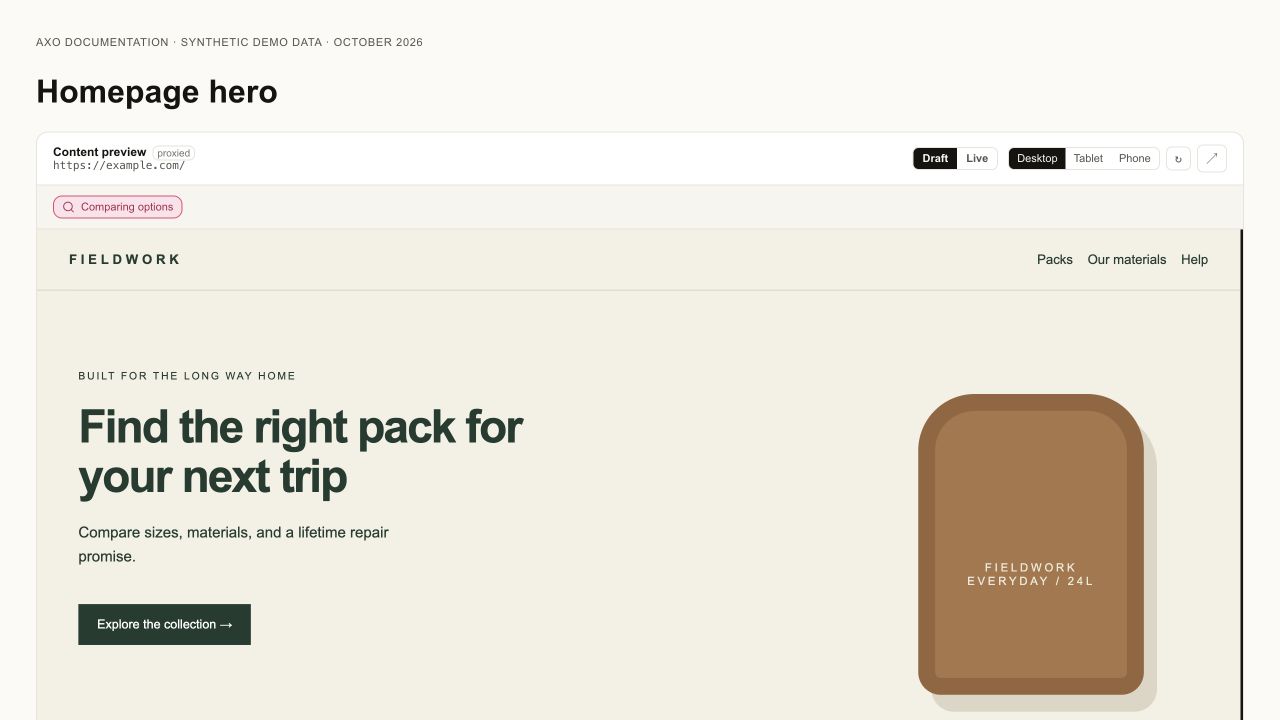
- Use the preview beside the editor, or click View Preview for a larger view.
- Select the audience you are targeting. If several variants qualify, use Preview variant to inspect a specific one.
- With Review before publishing on, choose Draft to inspect saved changes and Live to compare the published version.
- Check the headline, images, links, and layout at Desktop, Tablet, and Phone widths.
Use Share preview to create a review link for a selected audience and page. Choosing a specific Preview variant bypasses its eligibility rule. This proves rendering only; verify ordinary audience selection and goal delivery separately using the launch checks.
3. Publish or confirm delivery
| Editor message | What to do |
|---|---|
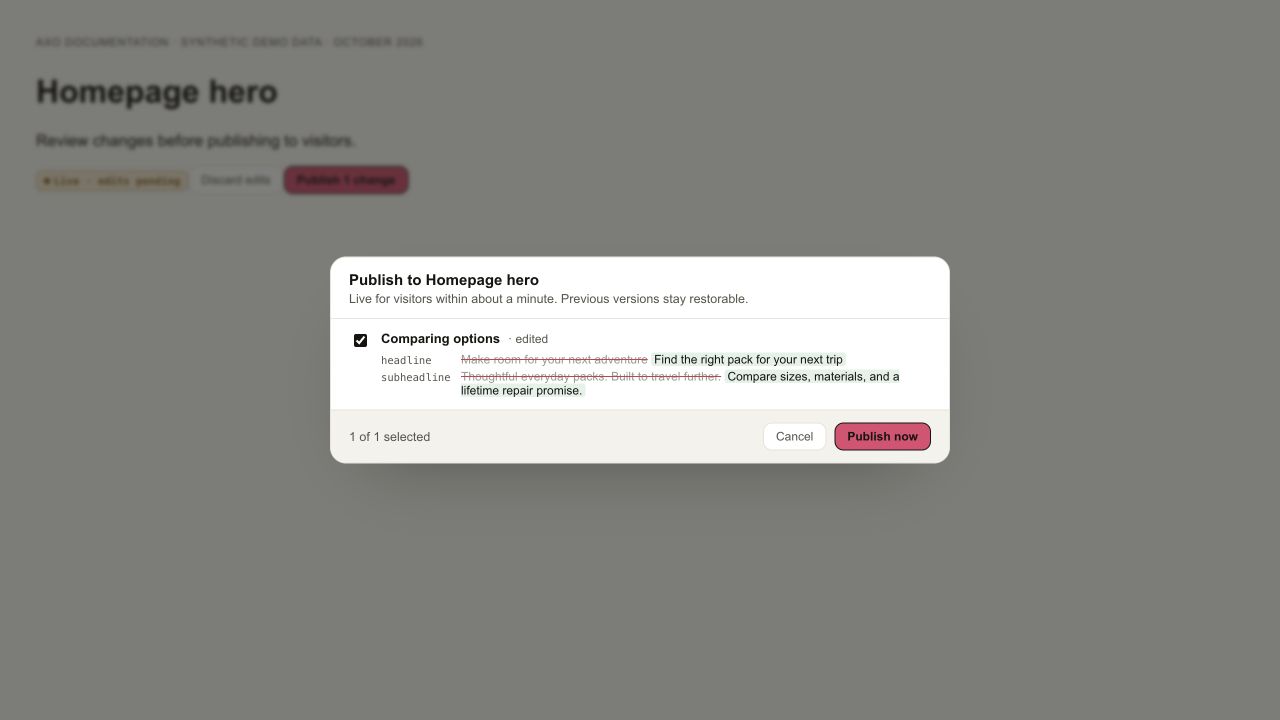
| Saves privately until published | Click Publish changes (the button includes a count), review the differences and selected variants, then click Publish now. |
| Autosaves live | Saved changes become eligible for delivery automatically. There is no separate Publish step. |
For manual publishing, Draft means never published. Live · edits pending means visitors still receive the previous published version. Paused means a previously published variant is switched off.
The site must also be live, the zone approved, and the variant eligible for the visitor. Open Launch if the site is still in Pre-launch.
If the original page still appears, check the page pattern, audience, zone selector, and variant state. Review results on the Impact page after visitor evidence accumulates.
Stop or correct published content
Open Zones and choose Pause to stop every variant in a zone. To stop only one variant in a shared zone, ask the connected assistant to disable the exact saved variant ID with update_content_variant and active: false. Confirm the saved state and recheck ordinary delivery after the page receives updated configuration.
Correct the draft and publish the reviewed version before resuming. A paused, previously published variant can resume its existing published content without another publish step. Turning review before publishing off releases pending edits across the site. It does not restore the original page.
See diagnosis and recovery for wrong fields, missing delivery, and missing goal events.